📏 Creating an Installation Drawing for the Roof Plane
The roof plane layout drawing is a key part of the building design process, allowing you to translate the design plans into a practical design on the roof. This drawing serves as a detailed guide for builders when installing a roof system and contains important information on material placement, joints and all technical aspects that are essential for a quality and safe roof construction.
In HiStruct, complete drawings for all roof planes are automatically generated based on the 3D model. To edit these drawings:
- In Sheeting menu simply navigate to a specific roof plane with Edit button which you can see directly on the specific roof plane

- Click on the Drawings button.
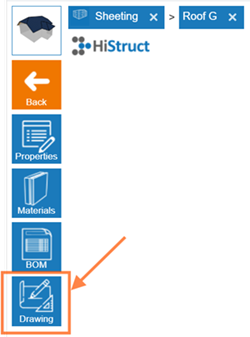
- You can now further edit the drawing: add dimensions, add labels, change name and scale in Properties tab.
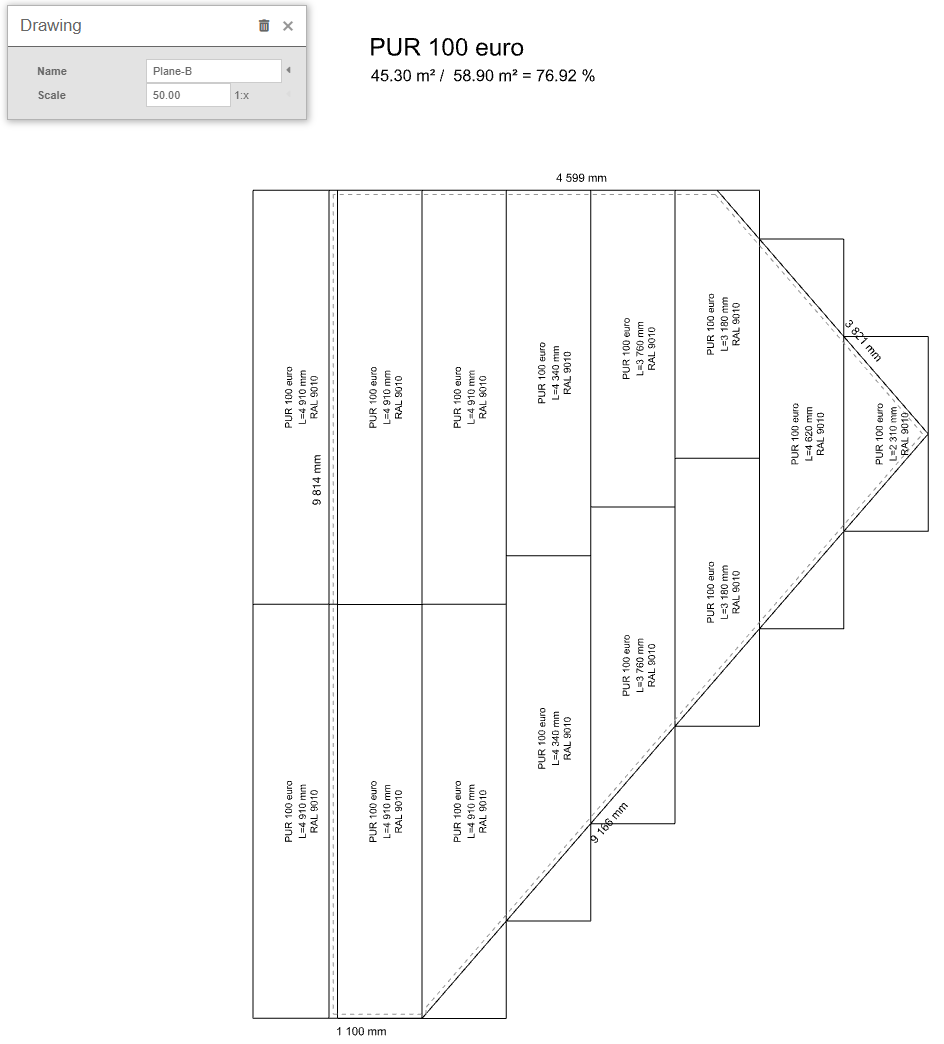
Adding dimensions
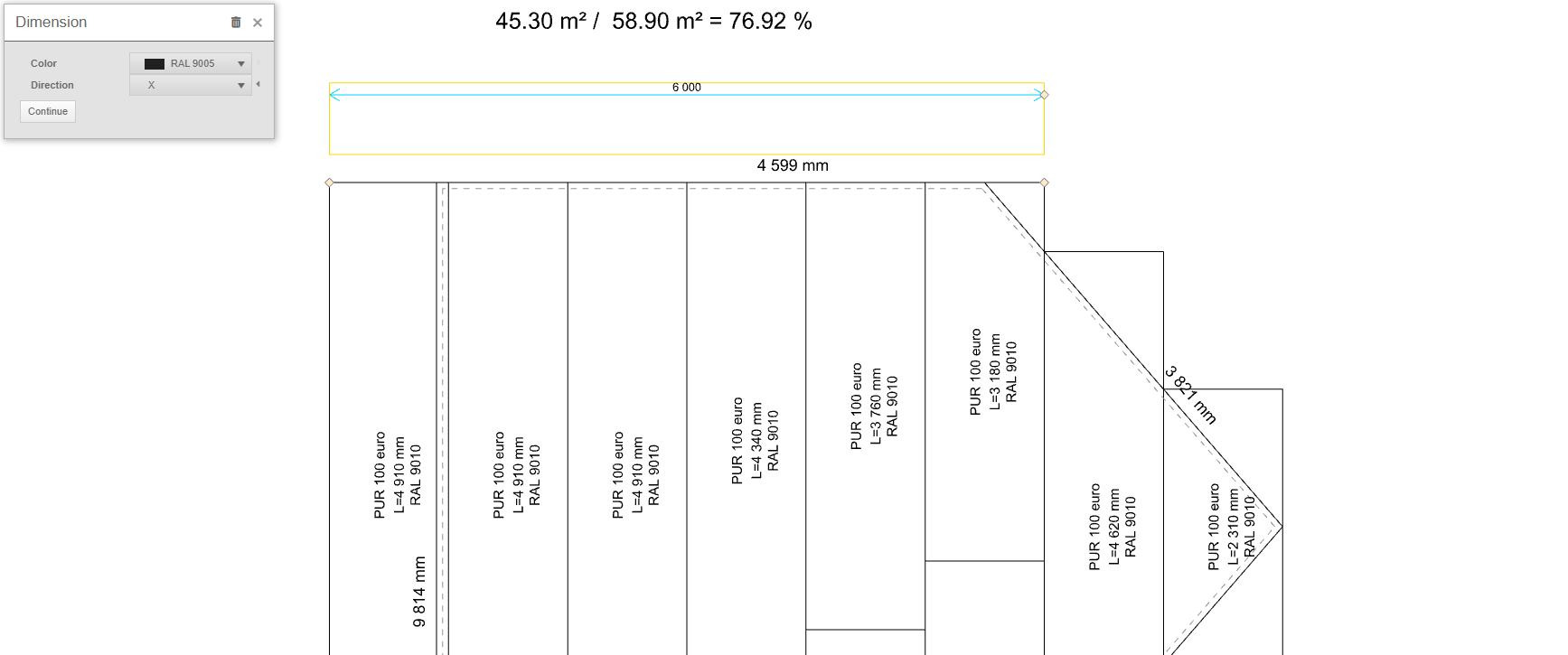
You can enter a datum by clicking on the Dimension button, selecting the two points for which you want to plot a datum, and then specifying the distance of the plotting line. After clicking on the dimension, it is possible to:
-
Change its color
-
Specify the direction in which the dimension will be plotted. The direction can be set to X, Y, or Default, which will measure the shortest distance between these points. Alternatively, the Angle direction can be selected, which will plot the dimension at the selected angle.
-
The last option in the dimension edit is the Continue button, which will generate another dimension in the same direction.
💡 If you want to edit any point of your added dimension, just click on the dimension and by moving the yellow points you are already editing the dimension.
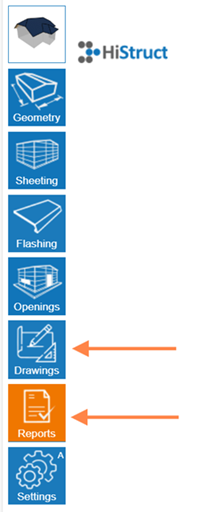
❓Where can I find and download the generated drawings?\ Once generated and adjusted, the drawings are automatically included in the outputs. Go back into the main left-side menu:
-
Go to Drawings ⇒ Assemblies in the main left-side menu. Here you can further edit the drawings - for example: add dimensions, add labels, or change the name and scale in the Properties tab.
-
You can download them under the orange Reports button ⇒ Sheeting BOM, where the drawings are included.
-
When you are in the specific drawing, you can download it as PDF using a camera button and then print it to PDF
⚠️ Note:* Certain functions like Control and Edit buttons are accessible only in Advanced mode. Check the Settings guide for instructions on unlocking all features.*
👉 Back to article How to Work with Sheeting menu